 how-to
Remote Home Monitoring via Phone: A Setup Guide
Table of Contents
- Understanding Remote Home Monitoring via Phone
- How to Set Up Mobile Alerts for Home Alarms
- Best Home Security Apps for Remote Monitoring
- Integrating Smart Home Automation with Security Systems
- Ensuring Connectivity Reliability and Data Privacy
- Troubleshooting Common Remote Monitoring Issues
- Frequently Asked Questions
Last Updated: September 20, 2026
Understanding Remote Home Monitoring via Phone
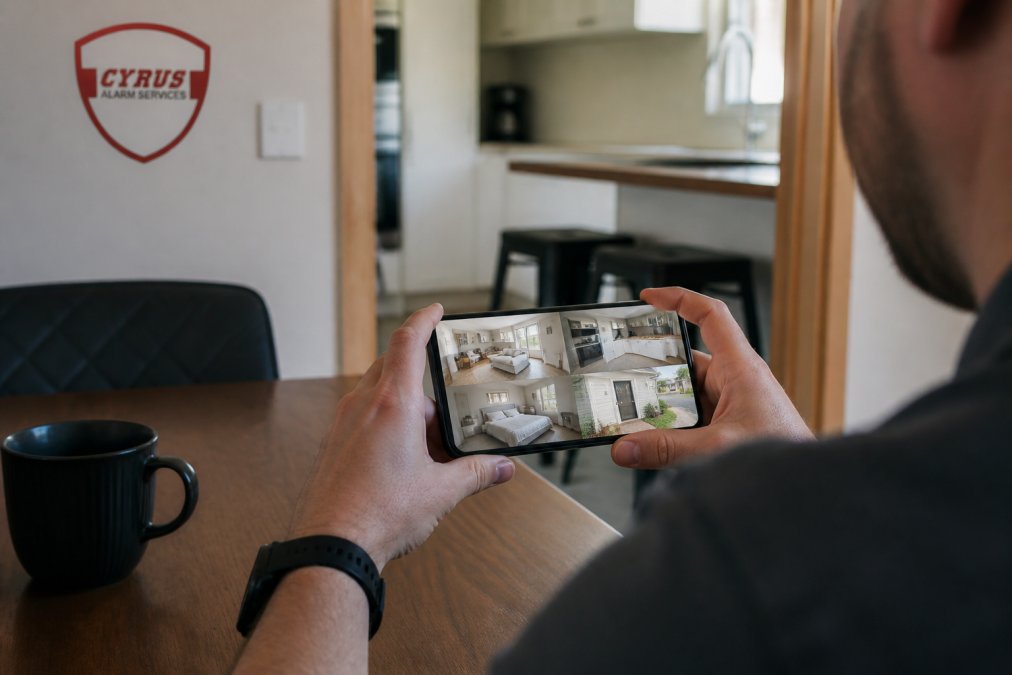
Remote home monitoring via phone allows you to watch, control, and respond to your home security system from anywhere using a mobile app. Instead of being tied to a control panel at home, you can arm and disarm your system, receive instant alerts, view live video feeds, and check your home's status from your smartphone or tablet.
How to Set Up Mobile Alerts for Home Alarms
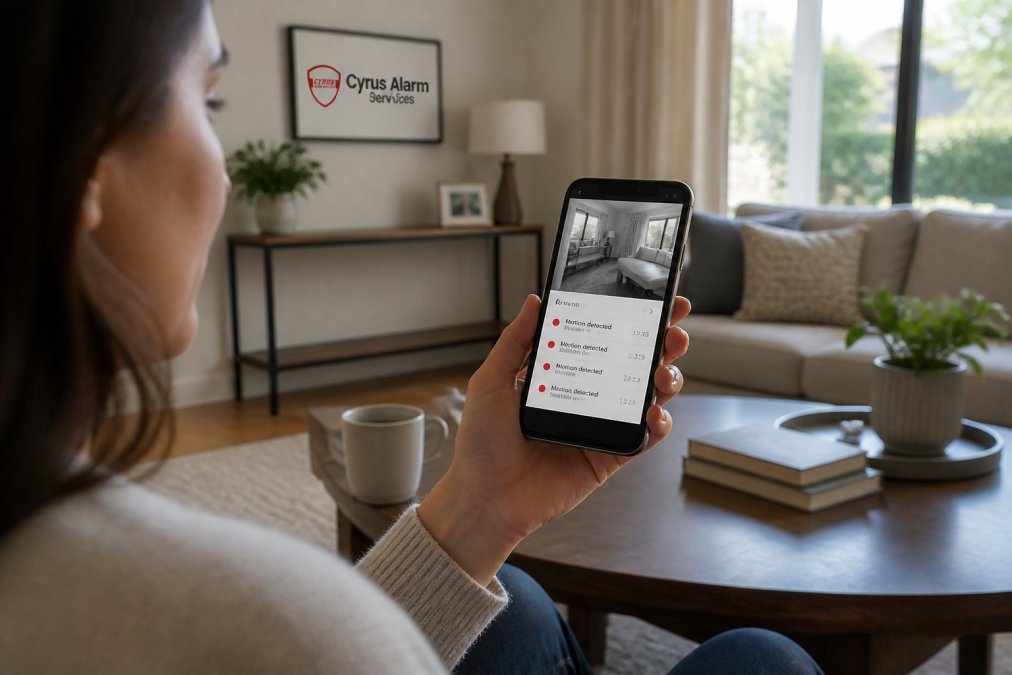
Setting up mobile alerts typically takes 15-30 minutes: install the app, connect your alarm system, and configure notification preferences.
Step 1: Install Your Mobile App and Create an Account
Download the official mobile app from your alarm system provider and create an account using your email and a secure password. Have your system's serial or account number ready (found on your alarm panel or documentation). Verify your email address to ensure only authorized users can access your system remotely.
Step 2: Connect Your Alarm System to Your Smartphone
Open your alarm panel's connectivity settings and enter your Wi-Fi network name and password, or activate cellular backup. Return to your mobile app, select "Add Device," and follow the on-screen prompts to complete the connection (typically 2-5 minutes).
Step 3: Configure Alert Preferences and Notification Settings
Access notification settings to customize which events trigger alerts: motion detection, door/window sensors, arming/disarming, low battery, and connectivity issues. Set your preferred alert level and configure quiet hours. Test by triggering a sensor to confirm alerts reach your phone.
Best Home Security Apps for Remote Monitoring
The best home security apps combine reliable connectivity, intuitive interfaces, and comprehensive features. Evaluate real-time alert speed, video streaming quality, two-way audio, cloud storage, and smart home integration.
Key Features to Look For in a Mobile Security App
Key features include live video streaming with minimal latency (1-3 seconds), customizable motion detection zones, instantaneous push notifications with details and thumbnails, two-way audio for communication, cloud and local storage options, and event logging for activity history.
| Feature | Why It Matters | What to Look For |
|---|---|---|
| Real-time alerts | Immediate notification of threats | Push notifications within seconds of event |
| Live video feed | Visual confirmation of activity | Streaming with minimal latency (1-3 seconds) |
| Two-way audio | Remote communication capability | Clear audio quality, instant transmission |
| Motion detection | Sensor-based alerts without video | Customizable activity zones to reduce false alerts |
| Event logging | Historical record of all activity | Searchable logs with timestamps and details |
| Cloud storage | Backup footage access from anywhere | Automatic upload, searchable by date/time |
| Smart home integration | Expanded automation possibilities | Compatibility with major platforms |
Integrating Smart Home Automation with Security Systems
Smart home integration creates automation workflows: motion at your front door triggers exterior lights and cameras, sends you a notification with video, and activates two-way audio. Location-based automation arms your system when everyone leaves and disarms when the first person arrives home.
Ensuring Connectivity Reliability and Data Privacy
Connectivity reliability is essential for remote home monitoring via phone to work when you need it. Most quality systems use dual connectivity: Wi-Fi for primary communication and cellular backup through LTE-enabled modules. Cellular backup ensures your system communicates even if your home internet fails.
Network Redundancy and Failover Mechanisms
A properly configured system should switch to cellular backup within 30-60 seconds when Wi-Fi drops. Ensure your alarm panel's cellular module is activated and provisioned with an active data plan. Test failover by temporarily disconnecting your home internet and monitoring the app's status change. For homes with unreliable internet, consider a cellular-first system where LTE is primary and Wi-Fi is backup.
Data Encryption and Transmission Security
Look for systems using TLS 1.2 or higher encryption for app-to-server communication and AES-256 encryption for stored data. Some providers offer end-to-end encryption where only you hold the decryption key. Verify that local storage also encrypts footage to prevent physical access theft.
Account Security and Access Control
Enable two-factor authentication (2FA) immediately after account creation, using an authenticator app rather than SMS to avoid SIM swapping attacks. Create a unique, strong password (16+ characters with uppercase, lowercase, numbers, and symbols) using a password manager. Change your password every 6-12 months and review login history for unrecognized sessions.
Privacy Policies and Data Retention
Review your provider's privacy policy regarding data collection scope, retention period, third-party sharing, and compliance certifications (SOC 2 Type II or ISO 27001). Reputable providers clearly state their data practices and publish transparency reports on government data requests.
Securing Your Mobile Device
Protect your smartphone with a strong PIN or biometric lock, keep software updated, avoid logging into your security app on public Wi-Fi (use cellular data or a VPN instead), disable app auto-login, and review app permissions to disable unnecessary access.
Compliance Considerations for Recording
Be aware of state and local recording laws. Most states allow video recording on your property, but some restrict audio recording without consent (California, Florida, Pennsylvania). Inform visitors that audio may be recorded, and check if your system allows disabling audio recording while keeping video active.
Troubleshooting Common Remote Monitoring Issues
Remote monitoring issues fall into three categories: connectivity problems, notification failures, and video streaming delays. Before contacting support, gather your system's connectivity method, home internet speed, and phone signal strength.
Connectivity Issues and Network Diagnostics
If your app shows your system as offline: (1) Verify home internet by opening a website on another device; restart your modem and router if needed. (2) Check your alarm panel's connectivity status and signal strength. (3) Move your router closer to the alarm panel to improve Wi-Fi signal. (4) Check for Wi-Fi interference from microwaves, cordless phones, or Bluetooth devices; use a Wi-Fi analyzer app to find less congested channels. (5) Switch to cellular backup if Wi-Fi is unstable. (6) Verify your router supports 802.11ac (Wi-Fi 5) or newer; upgrade if more than 5 years old.
Notification Failures and Alert Delivery
If you're not receiving push notifications: (1) Enable notifications at the phone level (iOS: Settings > Notifications; Android: Settings > Apps > Notifications). (2) Confirm specific event types are selected in the app's notification settings. (3) Disable aggressive battery optimization (iOS: Settings > Battery > Battery Saver; Android: Settings > Battery > Battery Optimization). (4) Check the app's notification history to see if alerts are being sent. (5) Use the app's "Send Test Notification" option and manually trigger a sensor to verify the system is working. (6) Verify your phone has an active internet connection.
Video Streaming Delays and Performance Optimization
Latency in live video feeds, the delay between what's happening and what you see on your phone, usually indicates bandwidth constraints or network congestion:
-
Check your home internet speed: Use a speed test app (Speedtest by Ookla is available free on iOS and Android) to measure your download and upload speeds. Video streaming typically requires at least 2-3 Mbps download speed for acceptable quality. If your speed is below 2 Mbps, video will be choppy or may not stream at all. Contact your ISP if speeds are consistently below your plan's advertised rate.
-
Reduce other bandwidth usage: Close streaming apps (Netflix, YouTube, music services) and pause large downloads on other devices. Each device on your network consumes bandwidth; if multiple devices are streaming simultaneously, your alarm system's video may be starved for bandwidth. Prioritize your security system by pausing non-essential activities before viewing live video.
-
Adjust video quality settings: Most security apps allow you to lower video resolution or frame rate to reduce bandwidth consumption. In the app's video settings, try switching from "High" to "Medium" or "Low" quality. Lower quality will stream faster but with reduced detail. This is a useful trade-off when bandwidth is limited.
-
Move closer to your Wi-Fi router: If you're viewing video from a weak Wi-Fi signal, your phone may struggle to maintain the connection. Move closer to the router or switch to cellular data to see if latency improves. If cellular data shows significantly lower latency, your home Wi-Fi is the bottleneck.
-
Check your alarm system's upload speed: Video streaming depends primarily on upload speed (data leaving your home), not download speed. A home internet connection might have 100 Mbps download but only 10 Mbps upload. If your upload speed is below 5 Mbps, video streaming will be slow. Contact your ISP about upgrading to a plan with higher upload speeds, or consider switching to a provider that offers fiber or cable internet with better upload performance.
-
Verify your camera's network connection: If a specific camera shows high latency while others don't, that camera may have a weak Wi-Fi signal. Move the camera closer to your router or install a Wi-Fi extender near the camera. Alternatively, if your system supports it, connect that camera to a wired Ethernet connection through a PoE (Power over Ethernet) injector for more stable connectivity.
False Alerts and Sensor Sensitivity
If you're receiving alerts for motion you didn't expect:
-
Adjust motion detection sensitivity: Most security apps allow you to set motion sensitivity on a scale (e.g., Low, Medium, High). If you're getting alerts from trees moving in the wind or passing traffic, lower the sensitivity. Start with "Medium" and adjust down if false alerts continue.
-
Create activity zones: Define specific areas within your camera's view where motion should trigger alerts. Exclude areas like trees, streets, or neighboring properties. Most apps allow you to draw custom zones on the camera's live view. Only motion within these zones will generate alerts.
-
Schedule quiet hours: Configure times when motion alerts are silenced or sent silently (without sound or vibration). For example, disable motion alerts during daytime hours when you expect activity, or during times when you're home and don't need alerts. You can usually set different quiet hour schedules for weekdays and weekends.
-
Verify sensor mounting: Door and window sensors sometimes trigger accidentally if they're not mounted properly. Ensure sensors are aligned and not loose. If a door or window sensor keeps triggering when nothing is opening, the sensor may be misaligned or the door/window may be warped, causing it to move slightly in its frame.
-
Test sensors manually: Trigger each sensor intentionally to confirm it's working correctly. Open a door or window to test door/window sensors. Walk in front of a camera to test motion detection. If a sensor doesn't trigger when you expect it to, it may be malfunctioning and need replacement.
Frequently Asked Questions
How do I control my house alarm from my phone?
Most modern security systems let you arm and disarm your alarm directly through a mobile app using your smartphone. After logging in with your credentials, you can access the system status, receive real-time alerts, and manage settings remotely. Ensure your phone has an active internet connection (cellular or Wi-Fi) and that your alarm system supports smartphone integration. Two-factor authentication adds an extra security layer to protect remote access to your system.
What should I look for in a remote home monitoring app?
The best home security apps for remote monitoring include real-time push notifications, live video streaming capability, motion detection with activity zones, two-way audio communication, cloud and local storage options, and a user-friendly interface. Look for apps that offer cellular backup connectivity (LTE-enabled) in case your Wi-Fi fails, data encryption for security, and event logging to track all system activity. Integration with smart home devices and the ability to customize alert preferences are also valuable features.
Can I view live CCTV footage on my phone?
Yes, most modern CCTV systems allow live video streaming to your smartphone through their mobile app. You can access real-time video feeds from multiple cameras, zoom in on details, and use night vision features for low-light monitoring. Bandwidth and latency affect video quality and responsiveness. AI-powered cameras provide clearer footage and intelligent motion detection, which helps reduce false alerts and captures useful video for security purposes.
What happens if my internet connection drops during remote monitoring?
A reliable remote home monitoring system includes cellular backup connectivity so your alarm continues to communicate with the monitoring center even if your Wi-Fi fails. Many systems use LTE-enabled devices or cellular backup modules to maintain connectivity. Your local alarm will still sound during an intrusion, and push notifications may be delayed until connectivity is restored. Test your backup connectivity regularly and ensure your system has adequate power redundancy through battery backup to maintain operation during outages.